AI Video Generators in 2026: A Practical Guide for Creators

Software Developer & Digital Tools Creator
At a glance
Write a shot card: subject, setting, camera position, movement, length and delivery aspect ratio. For a fictional bakery promotion, start with a static close-up of a loaf on a clean counter rather than asking for a complete advert with several scene changes.
AI video generation is changing how creators prototype short clips, product concepts, social videos, and visual stories. Depending on the product, you may generate a scene from text, animate an image, or use AI features inside a video editor. These tools are not interchangeable: choose according to the exact job rather than a viral demonstration.
Plan one usable shot before generating a sequence
Write a shot card: subject, setting, camera position, movement, length and delivery aspect ratio. For a fictional bakery promotion, start with a static close-up of a loaf on a clean counter rather than asking for a complete advert with several scene changes.
Review the result frame by frame around hands, text, object boundaries and transitions. Check whether the same product remains consistent throughout the shot. Keep logos and essential pricing text as separately controlled edits when generated text is unreliable.
Record the tool, settings, prompt and usage terms that applied to the output. Before publishing, check rights to reference images, music, brand assets and any person's likeness. A paid plan is not evidence that every possible use is licensed. Count rejected generations and editing time when comparing cost, not only the price of the final clip.
What is an AI video generator?
An AI video generator creates or modifies moving images from an input such as a text prompt, reference image, or existing clip. Features vary. Before choosing a service, check clip duration, resolution, aspect ratios, audio support, reference controls, export options, credits, and commercial-use terms.
Which type of tool fits your goal?
- Goal: Generate a scene from text; Tool category: Text-to-video; What to check: Prompt controls, duration, consistency
- Goal: Animate an existing image; Tool category: Image-to-video; What to check: Reference and motion controls
- Goal: Cut long footage into short clips; Tool category: AI-assisted editor; What to check: Caption accuracy and timeline control
- Goal: Make presenter explainers; Tool category: Avatar video; What to check: Consent, language and voice quality
- Goal: Improve existing footage; Tool category: Editing/enhancement AI; What to check: Artifacts and export limits
A useful prompt formula
Describe subject + action + setting + camera movement + lighting + style + constraints. For example:
A ceramic coffee cup on a dark wooden table in a quiet modern café, gentle steam rising, slow camera push-in, warm window light, shallow depth of field, realistic product-commercial style, stable cup shape, no logos or readable text.
This prompt is easier to evaluate than “make a beautiful video.” It describes what should appear and how the camera should behave, though it cannot guarantee a perfect result.
Create a video step by step
1. Pick the format
Decide whether the result is vertical, square, or widescreen. Check the target platform's current requirements before generating.
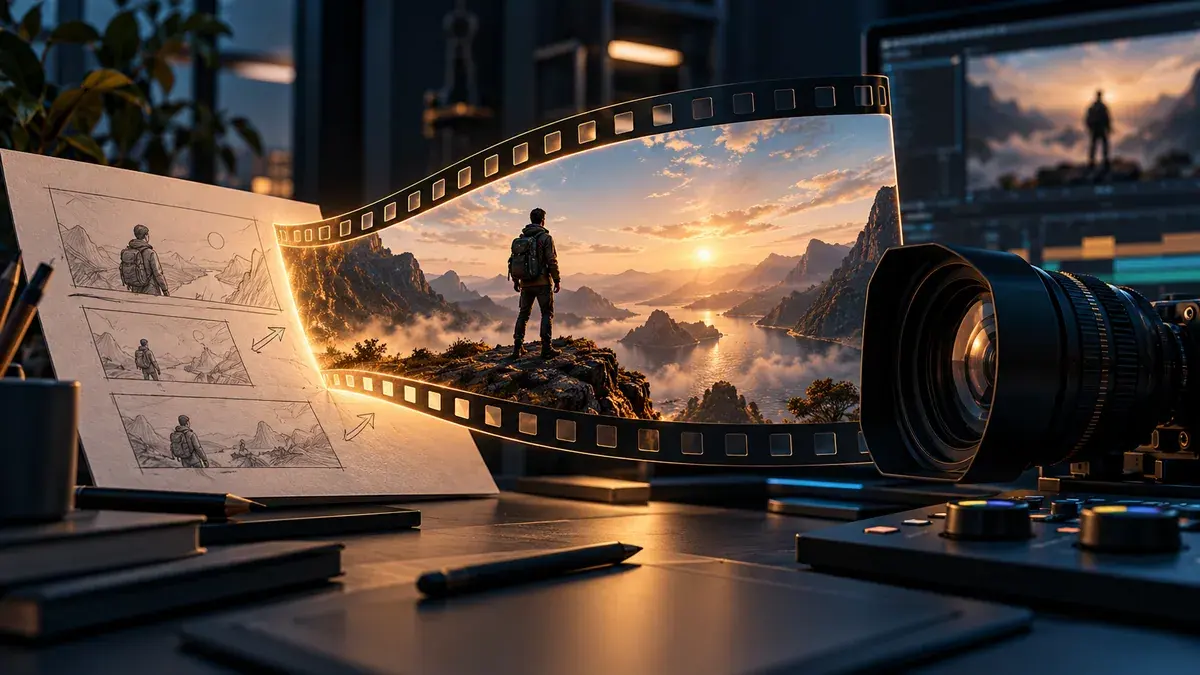
2. Plan a storyboard
List each shot, what the viewer should see, and its purpose. A simple storyboard prevents unrelated clips from becoming a confusing video.
3. Generate a draft
Use draft or lower-cost settings if available. Review composition, motion, subject consistency, and story before spending more credits.
4. Change one variable at a time
If a result is wrong, adjust camera movement or subject action instead of rewriting every detail. Save prompts and compare outputs.
5. Edit the shots together
Trim awkward beginnings and endings, add licensed sound, and create captions in an editor. Precise logos, titles, and subtitles are usually better added after generation.
6. Review before publishing
Look for flickering, changing object shapes, warped logos, inconsistent shadows, unnatural motion, and abrupt transitions. Watch at normal speed and inspect individual frames when needed.
How to improve consistency
Consistency is difficult in generative video. Some products support reference images, character controls, first/last frames, or motion guidance; check current documentation because features vary.
- Use clear reference images and simple lighting.
- Keep the subject, props, setting, and style description consistent.
- Generate shorter shots before attempting a long sequence.
- Avoid multiple complex actions in one clip.
- Replace shots that do not match the rest of the edit.
- Compare generated product visuals with the real product to avoid misleading advertising.
Reference controls can help but do not guarantee identical results.
Costs and commercial rights
Compare the full cost, not just the advertised entry price. Plans may limit credits, duration, resolution, queue priority, watermark removal, or model access. Before using a clip for client work, verify commercial-use rights, ownership or licenses for input assets, consent for faces and voices, and separate rights for music, fonts, and stock footage. Terms vary by provider and plan.
Common problems
Unnatural motion: simplify the action and use shorter shots. Distorted text: add titles in an editor. Changing style: reuse references and correct color during editing. Pretty but pointless footage: return to the audience and message; polish cannot replace a clear story.
Is AI video worth using?
It can help with concept art, storyboards, short visual experiments, and some social or educational content. It may be less suitable when exact product details, repeatable performances, or strict brand compliance are essential without extensive review. The best workflow combines generation with human direction and editing.
Further reading
- Google Trends — compare interest by region and period.
- OpenAI Sora — review current product information and availability.
- Check the official documentation and terms of the exact tool you plan to use.
AI video features, availability, pricing, and terms change frequently; verify them directly with each provider.
If your test clips vary too much between attempts, use the prompt-writing guide to separate fixed constraints from the details you want to change.
Try our Word & Text Counter
Analyze word counts, character frequencies, and reading time for AI prompts and written drafts.
Ukasha Altaf
Software Developer & Digital Tools Creator
Founder of Ukasha Mart. Building free, accessible browser-based utilities and writing in-depth tutorials on modern technology, freelancing, and practical online work.
Explore Further