Excel Shows ##### Instead of a Date or Time? How to Fix It

Software Developer & Digital Tools Creator
At a glance
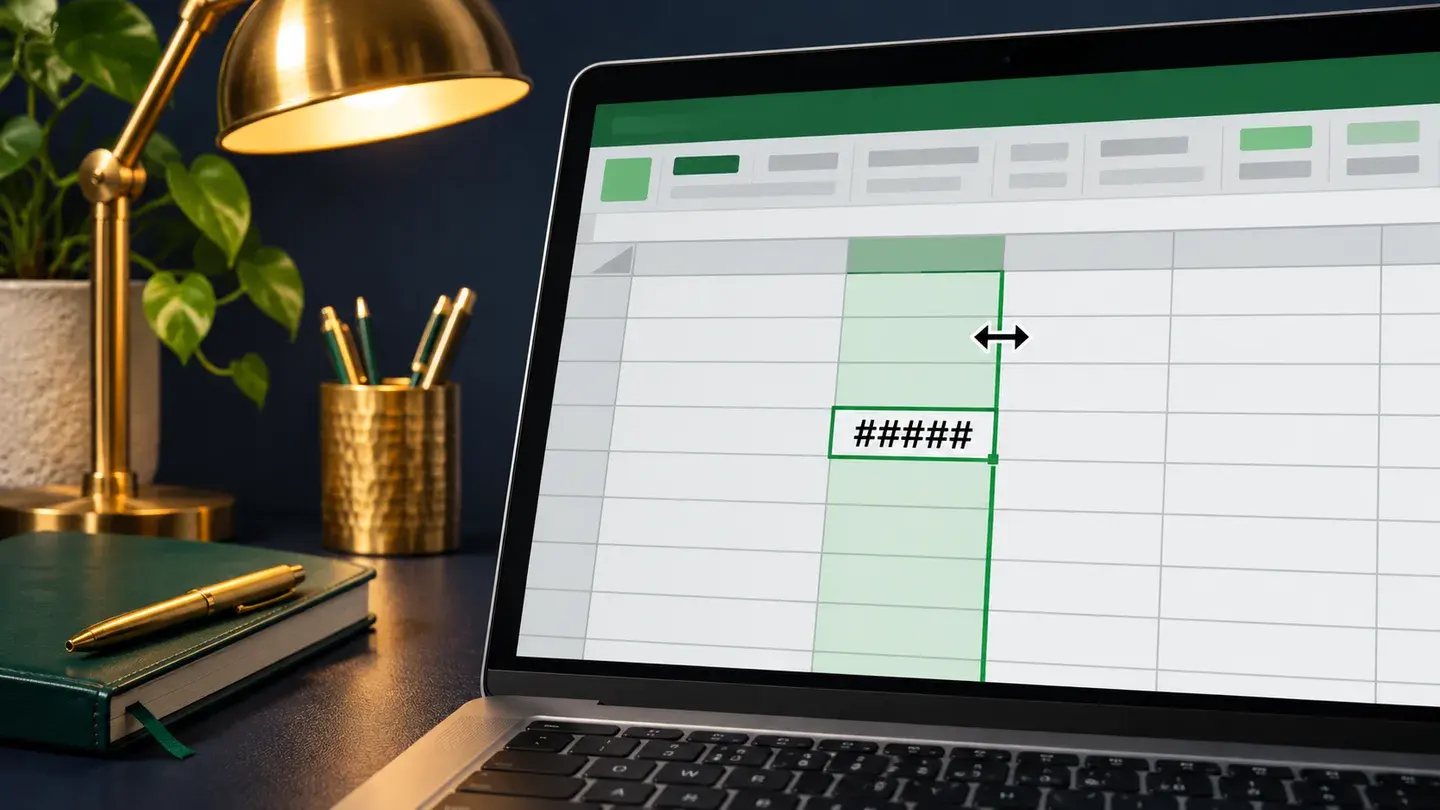
Widen the column first. If the hashes remain, temporarily set the cell to General and inspect the formula. A negative result formatted as a date or time can display as ##### in Excel's 1900 date system.
You open a timesheet and one result shows #####. Start by widening the column. If the value still looks wrong, use the formula bar and a temporary number format to find out what Excel is trying to display.
First check whether the value fits
Double-click the right edge of the column header to fit the column to its contents. You can also drag the edge. If a date appears, check whether it matches the source before sharing the sheet. A date can fit on screen and still be wrong.
If you need to keep the column narrow, select the date cells and choose Home → Number Format → Short Date. Keep the year visible where it matters, such as in a report that spans December and January. Microsoft documents both width and formatting fixes in its guide to the ##### display.
If widening the column did nothing
- Save a copy or pick one affected result cell you can safely inspect.
- Select General in the number format menu. Look at the displayed value and read the formula in the formula bar.
- A negative decimal in a date or time calculation usually means the formula subtracted a later time or date from an earlier one. Excel's 1900 date system can show hashes when that negative result uses date or time formatting.
- Compare the input cells with the original dates or times. Restore the intended format once you understand the result.
Excel represents time as a fraction of a day. For example, a result of -0.75 means minus 18 hours. Seeing that number in General format is a clue about the calculation. Keep the original formula visible while you check which values it used. Microsoft's guide to date and time formats explains how changing the format exposes the underlying number.
Worked example with a shift that crosses midnight
Imagine that A2 contains 22:00 and B2 contains 04:00. With only clock times, =B2-A2 returns minus 18 hours because both entries are treated as times within the same day. Decide how the sheet is meant to record shifts before changing the formula.
- The start and end have full dates. Enter the actual date with each time, including the following day's date for the end. Use
=B2-A2and format the result as[h]:mm. This also displays durations longer than 24 hours. - The sheet records only clock times and shifts are always shorter than 24 hours. Use
=MOD(B2-A2,1)and format the result as[h]:mm. The example should show6:00. Check the input first because this formula also wraps an end time that was entered incorrectly. - The sheet measures a signed difference, such as hours ahead or behind schedule. Use
=(B2-A2)*24and format it as a number. Label the column Difference (hours) so readers know what a value such as-1.5means.
If a normal daytime shift should end after it starts, correct the input or the cell references. Using ABS to force a positive result can conceal a reversed subtraction.
Check the next three rows before copying a fix
Use a normal shift with a known total, the overnight shift, and a row with a missing start or end. If the formula treats missing input as midnight, decide how to flag an incomplete row before filling the formula down. For a timesheet, compare the results with the original start and end records.
If the sheet looks right but a printed report still shows hashes, open print preview and inspect the final date and time columns. If the issue began before the spreadsheet opened, such as when Excel turned long IDs or codes into numbers during import, follow the CSV import guide for that separate problem.
Try our Strong Password Generator
Generate cryptographically secure passwords and tokens directly inside your browser.
Ukasha Altaf
Software Developer & Digital Tools Creator
Founder of Ukasha Mart. Building free, accessible browser-based utilities and writing in-depth tutorials on modern technology, freelancing, and practical online work.
Explore Further