How to Repeat Excel Headers on Every Printed Page

Software Developer & Digital Tools Creator
At a glance
In desktop Excel, open Page Layout → Print Titles and set Rows to repeat at top to the rows that contain your headings.
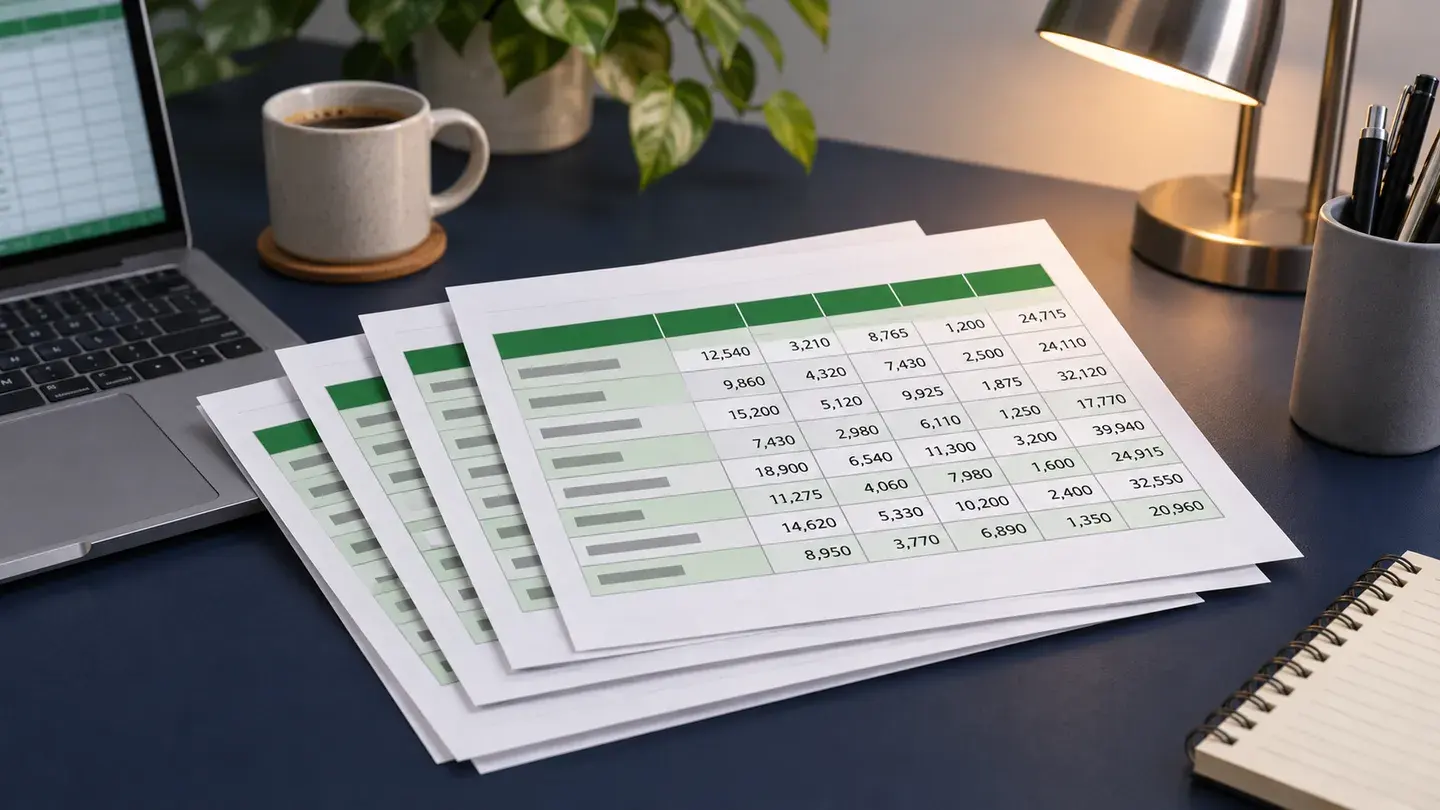
Your inventory sheet has product names, quantities and prices across three pages. Page one has labels, but page two starts with rows of numbers. Set Print Titles on the worksheet that you intend to print.
Choose the rows to repeat
- In desktop Excel for Windows, open the worksheet. If several sheet tabs are selected, right-click a selected tab and choose Ungroup Sheets.
- Go to Page Layout → Print Titles. On the Sheet tab, click Rows to repeat at top.
- Enter
$1:$1if row 1 contains the labels. If row 1 contains the report title and row 2 contains the column labels, choose$2:$2to repeat just the labels, or$1:$2if readers need both. - Confirm with OK, then open File → Print and examine the second page.
Use Columns to repeat at left when a sheet prints across several pages horizontally and readers need to see an identifier column on each page. For example, choose $A:$A to repeat the item name. Desktop Excel supports these settings. The web version does not currently offer repeating headers when printing. Microsoft's Print Titles guide.
If the setting is unavailable or the preview looks wrong
Finish editing any active cell and click a normal worksheet cell if a chart is selected. Confirm that a printer is installed and that only the intended worksheet is selected. Microsoft lists cell editing, chart selection and printer setup among the reasons the Print Titles command can be disabled.
Frozen panes help when scrolling on screen. Use print preview to check the printed layout. If a report that used to occupy three pages now fits on one very small page, check the scaling option. For a long report with only a few columns, try fitting the columns to one page wide and allowing the rows to continue across several pages.
Check an exported PDF before sending
Open page two and the last page. Check that you can read the column labels and that values still line up with them. A repeated heading helps only if the actual values are visible. Use the Excel hash marks troubleshooting guide if date or time columns display hashes in the preview.
Try our Strong Password Generator
Generate cryptographically secure passwords and tokens directly inside your browser.
Ukasha Altaf
Software Developer & Digital Tools Creator
Founder of Ukasha Mart. Building free, accessible browser-based utilities and writing in-depth tutorials on modern technology, freelancing, and practical online work.
Explore Further